
Schedule a FREE Consultation (Call 02 6190 7828)

How to Invite an Accountant to QuickBooks Online in 5 Steps

Published on July 20, 2026

Keeping your business finances organised often involves working with a trusted accountant. QuickBooks Online allows you to give your accountant secure access to your financial information without sharing your personal login details. Follow these simple steps to invite an accountant to your QuickBooks Online account.

Step-by-Step Instructions

1. Log In to QuickBooks Online

Sign in to the QuickBooks Online company file that you want ACT Tax Group to access.
2. Open Manage Users

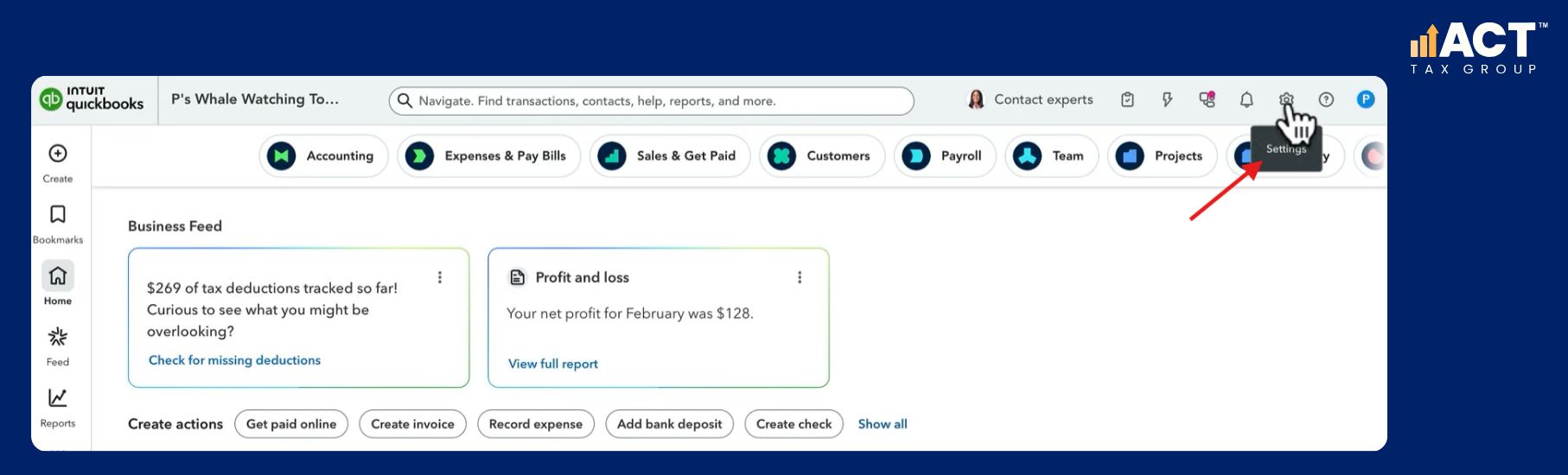
Click the Settings gear icon in the top-right corner and select Manage Users.

3. Go to the Accounting Firms tab

Navigate to Accounting Firms tab and click the Invite firm button.

4. Enter ACT Tax Group’s Details

Enter the following information:

Check the email address carefully before continuing.

5. Send the Invitation

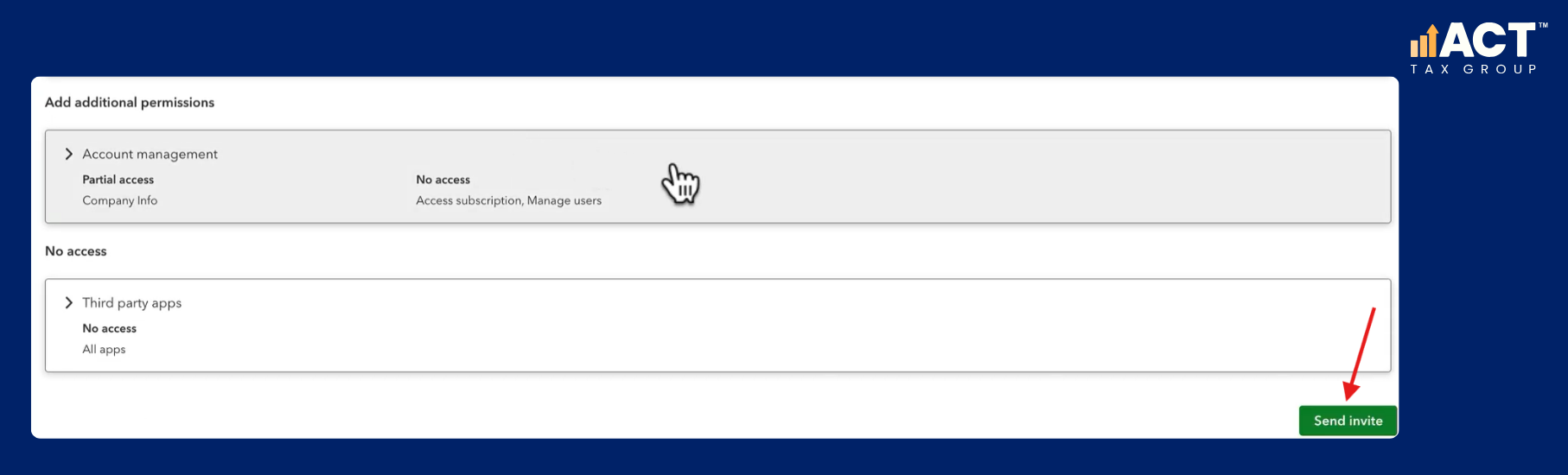
Click Send Invite. ACT Tax Group will receive an email containing a link to accept the invitation and access your QuickBooks Online account.

Once accepted, you can return to Settings and Manage Users to confirm that the user is active.
Who Can Invite an Accountant to QuickBooks Online?

The primary admin or a company admin can invite an accountant to a QuickBooks Online company file.

If you cannot see Manage users or the Accounting Firms tab, ask the primary admin or a company admin to send the invitation.

ACT Tax Group can access the transaction data in your QuickBooks Online company file.

This allows our accounting professionals to review your books, edit transactions, correct bookkeeping issues and assist with preparing your records for tax time.

Accountant access does not automatically provide primary admin access.

No. ACT Tax Group will use its own QuickBooks login after accepting the invitation.

You should not share your personal username, password or verification codes.

No. An accounting firm invited through the Accounting Firms section does not count towards the standard user limit for your QuickBooks Online plan.

QuickBooks currently allows up to two accounting firm users on most plans and up to three on QuickBooks Online Advanced.

QuickBooks does not currently charge an additional user fee for accounting firm users invited through the Accounting Firms section.

Your normal QuickBooks Online subscription and any other paid services will continue as usual.

Go to Settings, select Manage users, and open the Accounting Firms tab.

The status will change from Invited to Active once ACT Tax Group accepts the invitation.

Confirm that you entered office@acttaxgroup.com.au correctly and ask ACT Tax Group to check its junk or spam folder.

You can then return to Manage users and resend the invitation. ACT Tax Group can also provide its firm ID if the invitation cannot be delivered by email.

Return to Settings and select Manage users. Find the pending invitation and use the available option to resend it.

If QuickBooks does not provide a resend option, delete the pending invitation and create a new one.

Yes. Go to Settings, select Manage users, and open the Accounting Firms tab.

Find ACT Tax Group, select Delete from the Action column and confirm the change.

Removing access prevents ACT Tax Group from opening or editing your QuickBooks Online company file. It does not delete the transactions or accounting records already stored in QuickBooks.

Author Image

Lukasz Klekowski

Principal of ACT Tax Group, specialising in tax compliance and financial strategy for Australian small businesses.

LinkedIn
Claim Every Deduction You’re Entitled To
Free Tax Deduction Checklist

Leave a Reply

Your email address will not be published. Required fields are marked *